My Linux setup: niri, DankMaterialShell and a 34-inch ultrawide
A scrolling Wayland compositor, a keyboard-driven workflow and an ultrawide monitor. Why this combination made my machine feel twice as fast without upgrading any hardware.
For years I ran a normal desktop. GNOME, or KDE, or whatever shipped with the distro. Windows floating on top of each other, a dock at the bottom, and a mouse that did most of the work.
Then I moved to niri, and something clicked in a way I did not expect. This post is about that setup: what it is, why it feels fast, and the keyboard habits that changed how I use a computer.
What niri actually is
niri is a scrolling tiling compositor for Wayland. That phrase hides the important part, so here is the concrete version.
In a traditional desktop, windows float. They overlap, you drag them around, and you spend real time managing where things are. In a tiling compositor, windows tile automatically and never overlap. In most tiling compositors, though, the screen is still a fixed grid — windows shrink to fit as you add more.
niri is different. Windows live in columns, and columns sit side by side on an infinite horizontal strip. Open a new window and it does not squeeze anything. It appears to the right, off-screen, and the whole strip scrolls. Focus a window and the view scrolls to it.
It sounds like a small change. It is not. It means the answer to “where did my window go” is always the same: it is to the left or the right, and the screen scrolls to it. Nothing ever gets squashed, and nothing ever hides behind anything else.
Here is what that looks like in practice — three columns on the ultrawide, documents on the right, terminal in the middle, notes on the left:
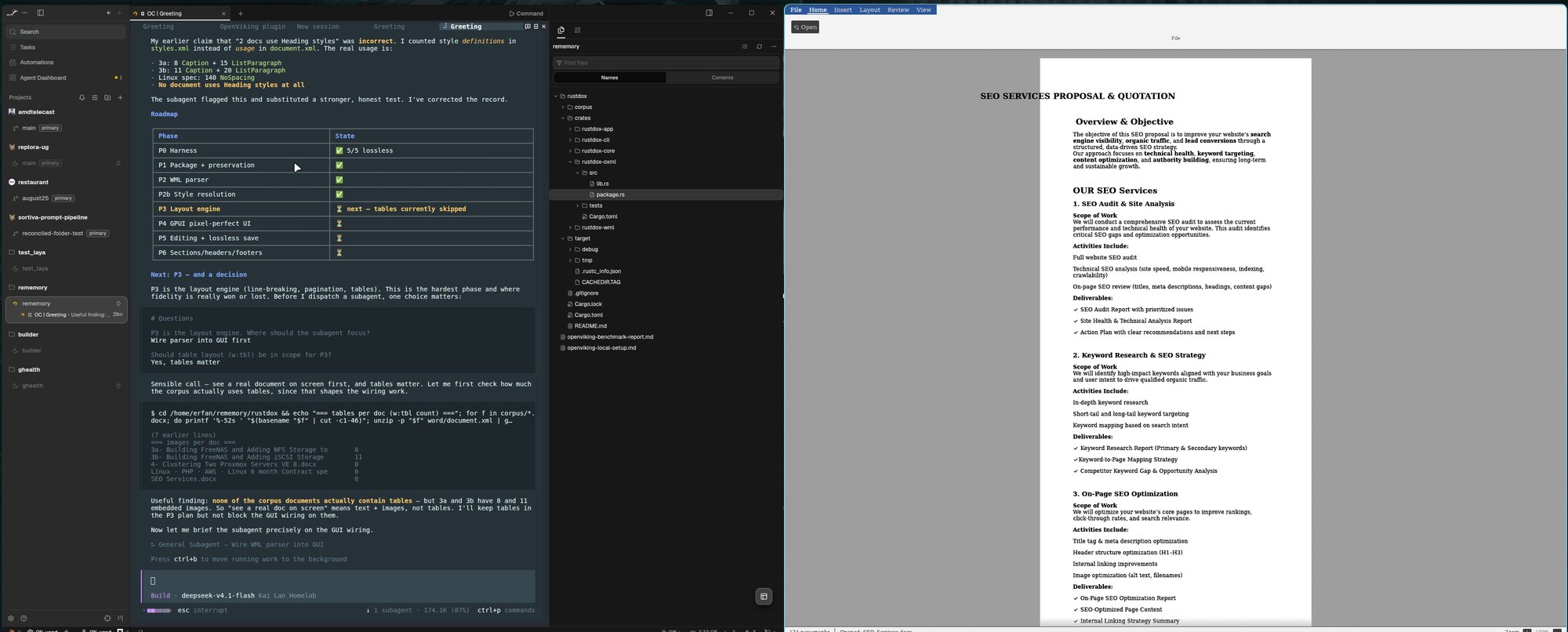
The 34-inch ultrawide is the other half of it
I run a 3440×1440 LG ultrawide at 100Hz beside a rotated Dell U2421E that sits vertically. The ultrawide is where the scrolling model pays off.
On a 16:9 screen, three columns feel cramped. On 3440 pixels wide, three columns are all genuinely usable at once. I regularly have a code editor, a terminal running an agent, and a document or browser side by side, and none of them feel like they are fighting for room. Two documents side by side is completely natural, which is how I read technical write-ups:
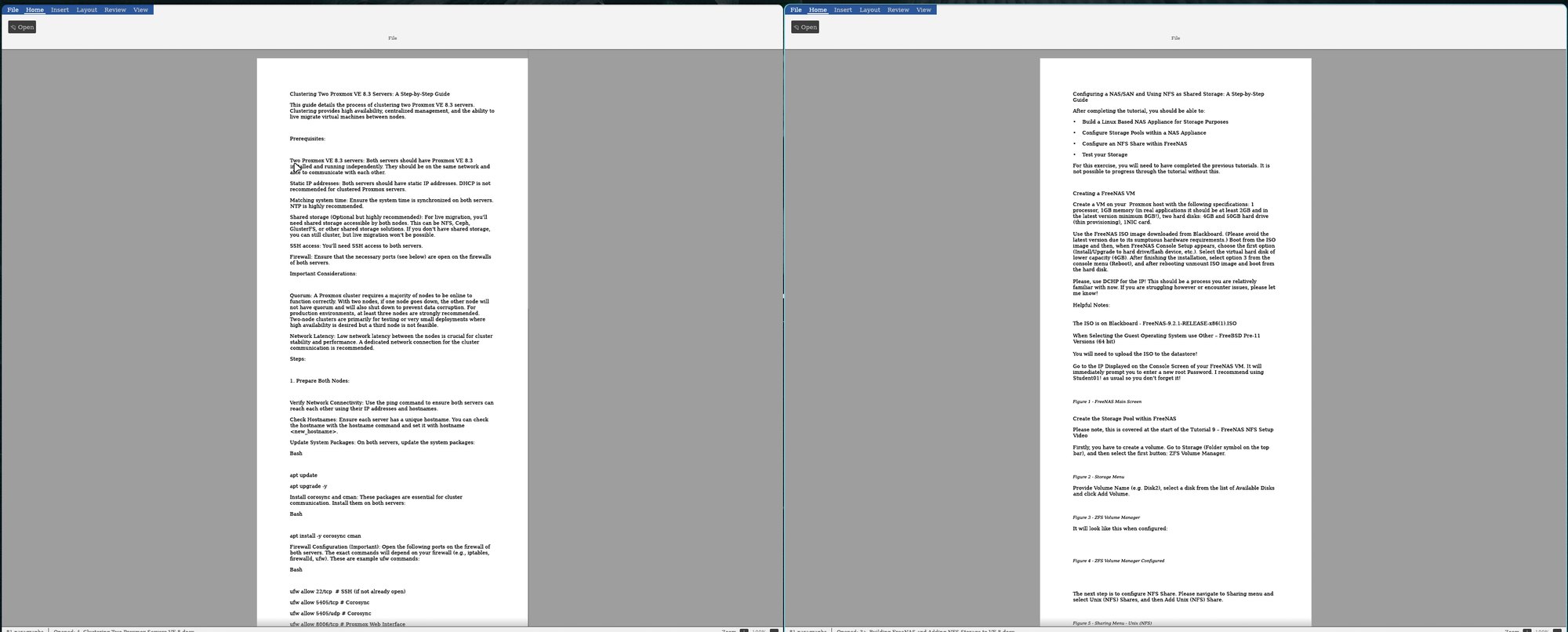
The vertical Dell is the counterweight. It is 1200×1920 in portrait, which is perfect for logs, diff review, chat, or anything that is tall and narrow. And because niri treats each output as its own set of workspaces, moving a window between the two is a keystroke, not a drag.
Keyboard-first is the actual unlock
This is the part I would tell anyone to try, even if they keep their current desktop. The mouse is not slow because moving it is slow. It is slow because of the constant micro-decisions: find the cursor, aim, click, aim again, drag. Each one costs a fraction of a second and a slice of attention. Hundreds of times an hour, that is the difference between a tool that disappears and a tool you are consciously operating.
With the keyboard, the window management is the typing. My hands do not leave
the home row. Mod is the Super key throughout.
The bindings I live in:
| Keys | What it does |
|---|---|
Mod + H / Mod + L | Focus the column left / right |
Mod + K / Mod + J | Focus the window up / down |
Mod + Shift + H / L | Move the whole column left / right |
Mod + Ctrl + H / L | Focus the monitor to the left / right |
Mod + R | Cycle column width: ⅓ → ½ → ⅔ |
Mod + Shift + R | Cycle window height (stacked windows in a column) |
Mod + F | Maximise the column |
Mod + Shift + F | True fullscreen, no gaps |
Mod + T | Open a terminal |
Mod + Space | App launcher |
Mod + O | Overview: every workspace, every monitor |
Mod + 1..9 | Jump to a workspace |
That last one, the overview, is worth calling out. Mod + O pulls back and shows
every workspace across every monitor at once, as a zoomed-out grid. You can see
where everything is and click or arrow straight to it. It replaces the mental
bookkeeping of “which workspace was that browser on” entirely.
The width model takes about a day to internalise. The rule that made it click for me:
- On a horizontal monitor, use
Mod + R— you are splitting left/right, so you change column width. - On a vertical monitor, use
Mod + Shift + R— a column is already nearly full width, so to split the screen you stack windows and change their heights.
DankMaterialShell
niri gives you the compositor. DankMaterialShell (DMS) gives you everything around it: the bar, the launcher, notifications, the lock screen, the clipboard manager, the power menu, a task manager, even the wallpaper browser. It plugs into niri over IPC and generates the compositor config for you.
It is also where a lot of the polish comes from — the rounded corners, the
blurred panels, the animations. And because it drives niri through dms ipc call,
every DMS feature is bindable to a key:
| Keys | What it does |
|---|---|
Mod + V | Clipboard manager |
Mod + M | Task manager |
Mod + N | Notification centre |
Mod + Shift + N | Notepad |
Mod + Y | Wallpaper browser |
Mod + Alt + L | Lock screen |
Super + X | Power menu |
One practical warning, learned the hard way: anything under
~/.config/niri/dms/ is auto-generated by DMS. It is marked “do not edit” and
it means it. Change a setting in the DMS GUI and your hand-edits vanish. Custom
binds go in ~/.config/niri/config.kdl instead.
“Fast” is not just benchmarks
People read “fast” as framerate, and niri is smooth — animations are spring-based and configurable down to the damping ratio. But the speed I actually notice is not the animations. It is this:
- No window ever resizes underneath me. The strip scrolls instead, so nothing reflows and nothing jumps.
- I stopped thinking about window placement. The layout is always the same shape, so my hands know where things are.
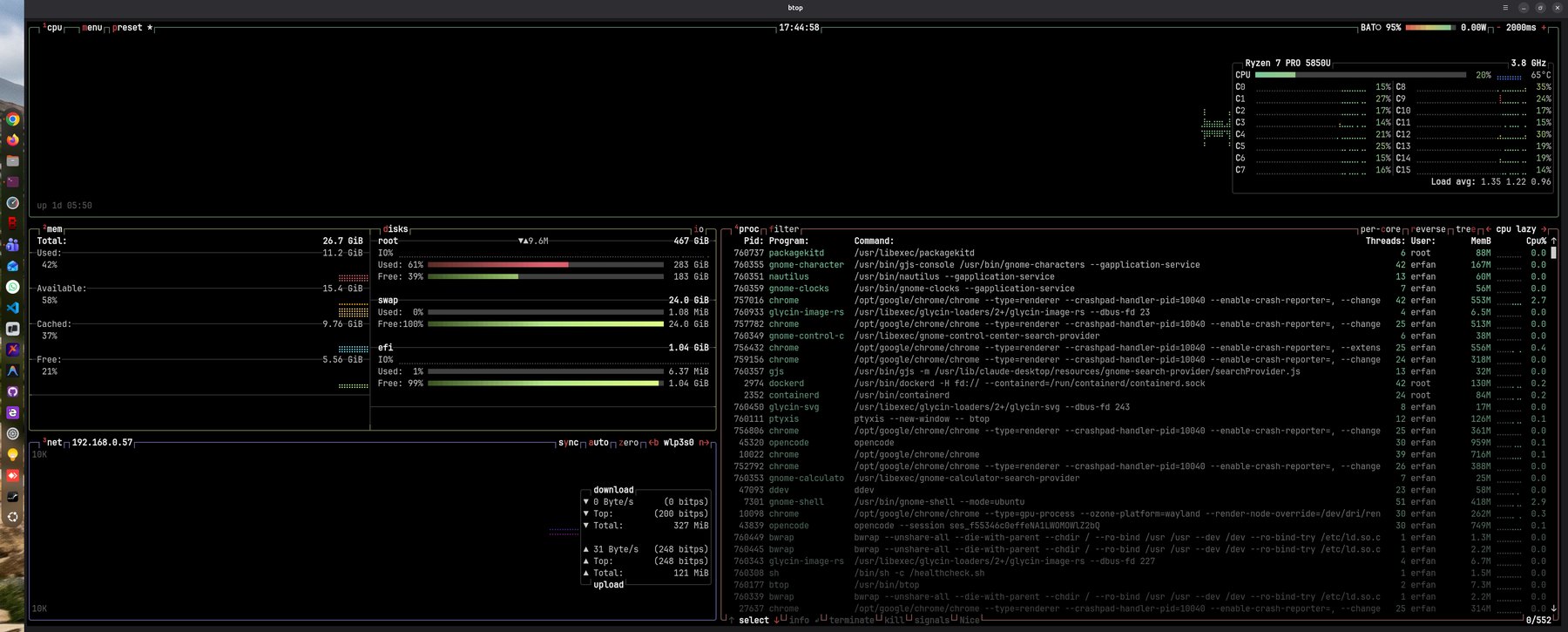
- The machine is not doing much. This is a Ryzen 7 PRO 5850U in a laptop, not a workstation. Scrolling a compositor across three columns costs almost nothing — here it is idling with 16 threads barely awake, load average under 1:
And here is the same machine deliberately pinned with stress-ng, all sixteen
threads at 100%, to show it is not hiding anything:
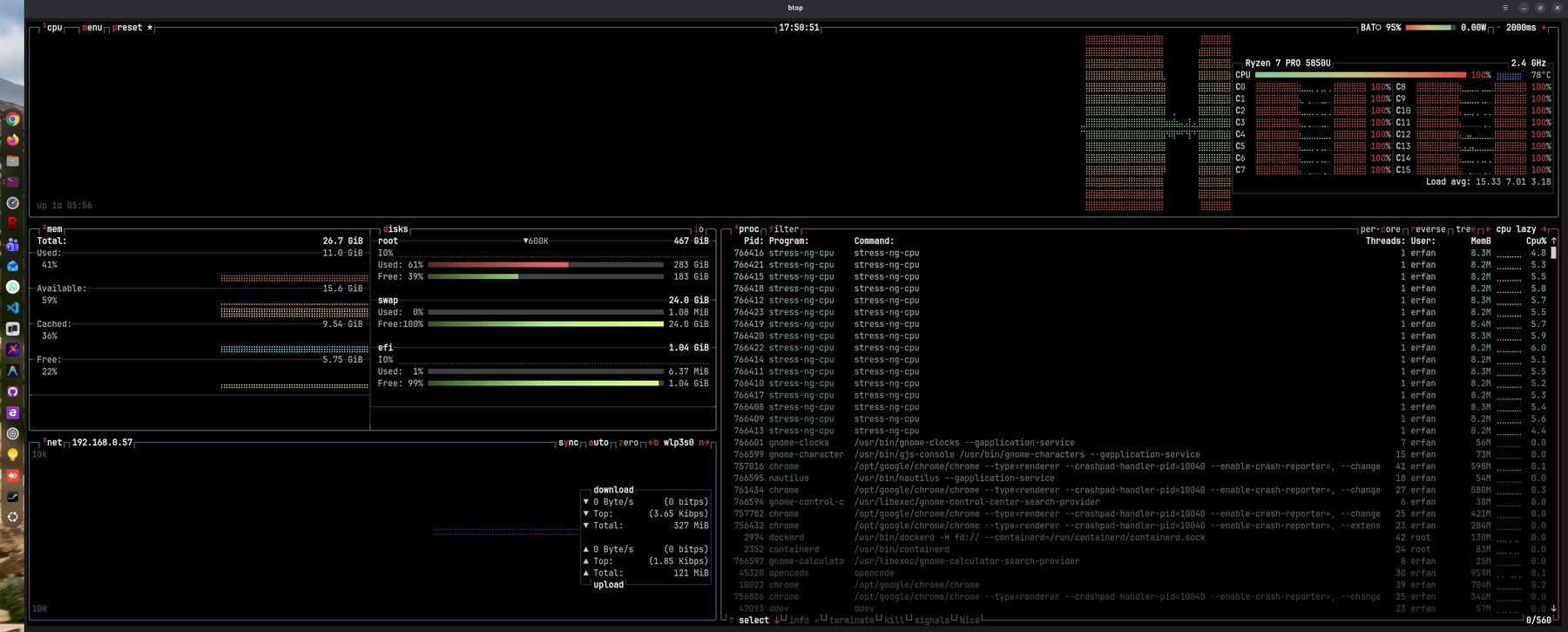
The point is not the benchmark number. The point is that the desktop is not part of the performance budget. It stays out of the way, so the CPU and memory go to the actual work — which, in my case, is usually a compiler or a local model.
Getting started
If you want to try it:
# niri ships in most distros now; on Ubuntu it is in the repos
sudo apt install niri

# log out and pick "niri" from your display manager's session list
Then install DankMaterialShell and let it generate the rest. First-day advice:
- Press
Mod + Shift + /to bring up the hotkey overlay. It lists every binding on your system. You do not need to memorise the tables above — they are on your own machine, on demand. - Do not fight the scroll model. When you want a window “back”, scroll instead of dragging.
- Keep the defaults for a week. The defaults are genuinely good, and changing everything on day one means you never build the muscle memory.
Worth it?
I did not upgrade any hardware to get this. Same laptop, same CPU. What changed was the interface between me and the machine — the layout model, the keyboard bindings, and a screen wide enough that the layout has somewhere to go.
The result is a computer that feels like an instrument rather than a window manager. I type, and the screen obeys. That is the whole trick, and it turns out to be a large one.